DBC Finance file associations, OLE documents and user preferences
Associating file extensions and OLE documents
The Update Registry function makes the associations with file extensions and OLE documents. This only has to be performed one time and may require administrator privileges on some versions of Windows (e.g. Windows XP). Contact your IT department about your privileges. Sometimes setting Run as administrator on your shortcut icon (see below) may be sufficient.
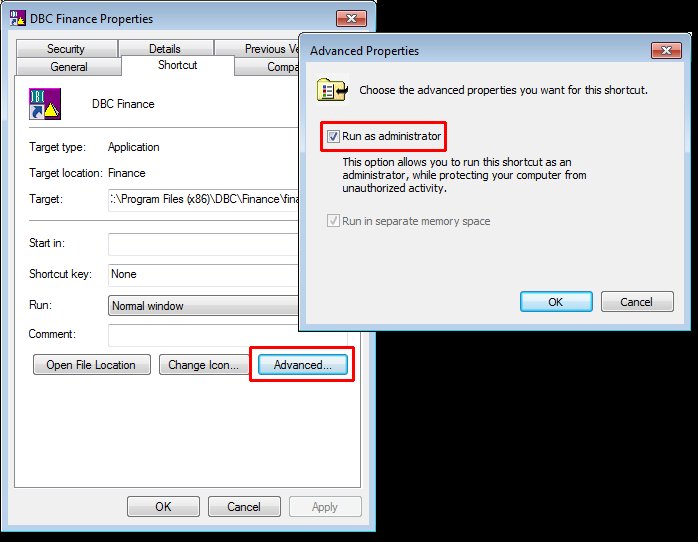
After the Registry (\\HKCR, \\HKCU and \\HKLM) has been updated, you can remove the administrator privileges.
- Make sure you have privileges to update the Registry.
- Start DBC Finance.
- Go to Tools | Update Registry.
- Check all boxes.
- Hit OK.
An error message will indicate if you do not have sufficient privileges to update the Registry. If the Registry is not updated, the Update Registry dialog may pop up every time the user starts the DBC program. The error message will give you the option to bypass the Update Registry dialog at start up. When you do have sufficient privileges, perform the above instructions again.
The Update Registry function can be performed from the command line:
finance -updateregistry
This does not require a valid license to be in force. However, it is assumed there are sufficient privileges to complete the function (i.e. update \\HKCR, \\HKCU and \\HKLM). The exit code should be ignored whether or not Update Registry is successful.
The spreadsheet is the record of Registry keys created/accessed by DBC Finance 7.013 (released 5/13/2016) in Windows 7 (64 bit) when performing the Update Registry function.
Microsoft's app Process Monitor (procmon.exe) tracked the creation of the keys.
To create your own updated list, download procmon.exe from the URL below.
http://technet.microsoft.com/en-us/sysinternals/bb896645.aspx
User Preferences
Users will need to update preferences on an ongoing basis when using DBC Finance. User preferences are stored in the \\HKCU\Software\DBC branch of the Registry. Preferences may be saved to a .sys file.
A user may move from one PC to another. Back up the preferences on the old PC and load them on the new PC. This is also a way of sharing preferences among multiple users.
To back up user preferences:
- In DBC Finance, go to Tools | Preferences.
- Hit Export.
- Specify the location and name of a .sys file.
- Hit Save.
To load user preferences:
- In DBC Finance, go to Tools | Preferences.
- Hit Import.
- Specify the location and name of the .sys file. By default, Windows does not display .sys files. You should specify the location and type the name of the file (since you can't select it). Otherwise, turn on the Windows option that will allow .sys files to be displayed. Then select the .sys file.
- Hit Open.